
Reviewing WordPress 7.0
I stopped using WordPress in 2022 because the project was moving in a direction that no longer matched my needs. I still check new releases to see how the platform is evolving and whether enough has changed to make me consider switching back.
WordPress 7.0 "Armstrong" was released on May 20, 2026. According to the documentation, it marks a fundamental shift in how WordPress operates. More than a visual refresh or a handful of new blocks, 7.0 positions WordPress as an AI-first application platform.
For this review, I focused on features most likely to affect everyday WordPress users and intermediate developers, especially where conceptual and technical complexity increases. These are major directional moves, but whether they are good moves is still up for debate.
Migrating content #
I used the migration tool to import a WordPress XML export from an older blog. The file came from a WordPress 6.3 installation that no longer exists.
The migration process itself has not changed:
Go to Tools > Import > WordPress.
Install the WordPress Importer plugin if you haven't already.
Upload the XML file and follow the prompts to assign authors and import attachments.
Because the original blog no longer exists, I had to configure Docker to mount a local uploads directory. I cover that setup later in the Docker section.
Editing imported content #
The editing experience in WordPress 7.0 was not what I expected.
The importer places your content into a single Classic block containing the entire post.
You can convert that content into individual blocks, but the process lags on longer posts. In practice, you may end up editing inside the Classic block anyway. You must also convert some media elements before they become editable.
The block editor did not work in Chrome Canary (150 at the time of writing), but it functioned normally in Chrome Stable (148).
I also tested the improved Grid block, and the results disappointed me. It exposes more options, but the controls remain unintuitive. WordPress presents it as a visual interface for CSS Grid, but it feels more like a complicated flexbox-style control surface that happens to use Grid under the hood.
Strict PHP requirements #
Before discussing AI and block tooling, runtime compatibility deserves a pause. Of the PHP versions WordPress 7.0 supports, only a narrow set remain in active or security support windows.
PHP 7.x, 8.0, and 8.1 are unsupported and no longer receive security updates. If you still run any of these versions, you expose your server to vulnerabilities that maintainers will never patch.
PHP 8.2, and 8.3 receive security fixes only.
PHP 8.4 maintains full support through December 2026, then security-only support through December 2028.
That leaves PHP 8.5 as the only fully supported release in this lineup. PHP maintainers fully support it until December 2027 and will provide security updates until December 2029.
This still depends on Core validation for full compatibility, but based on support timelines, PHP 8.5 is the practical baseline.
For more information, see PHP Supported Versions and WordPress PHP Requirements.
AI features #
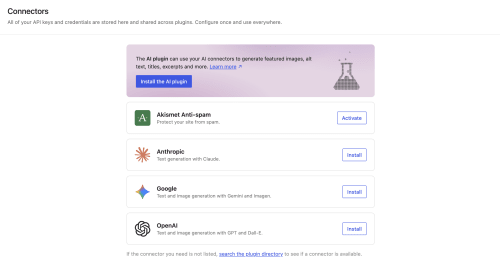
WordPress 7.0 introduces a centralized AI stack: the Connector Hub plus two client layers (the AI Client and the Abilities API).
The Connector Hub is a strong idea and a genuine simplification for users and developers. A single place for encrypted credential management removes much of the friction from AI adoption. But the Bring Your Own Key (BYOK) model is a double-edged sword: it democratizes access while shifting cost and security responsibility to users who may not fully understand the implications of sharing API keys with third-party plugins.
Rate limiting is where this model gets more concerning. What happens when a user has multiple roles? Do limits stack? If someone is both an Author and a Contributor, do they get 11,000 tokens per month? What if they have different roles across a multisite network? The potential for confusion and surprise costs is high.
- Multiple roles do not stack; a user gets only the highest allowance. That makes sense as a cost-control measure, but it is not obvious, and users may assume that multiple roles increase their quota.
- In multisite, WordPress applies limits per site by default. That gives users separate allowances across a network, making total usage harder to track.
- If a super admin enables network-wide limits, those per-site allowances disappear and become a shared pool. That is safer in one sense, but it changes the mental model again and makes usage rules less predictable.
The issue is not only the policy itself. The rules change by context, making cost management harder to understand than it should be.
A bigger risk is that rate limiting currently lives in a feature plugin. If a site owner does not install that plugin, the admin UI has no way to set rate limits. For non-technical users, that represents a serious security gap.
WP AI Client and Abilities API #
Here, the underlying architecture genuinely impresses.
The WP_AI_Client is the server-side core of this infrastructure, using a WordPress implementation of the Model Context Protocol (MCP).
The Problem: Before this, plugin developers often bundled heavy third-party PHP SDKs, such as Guzzle HTTP wrappers for OpenAI, just to call AI endpoints. That bloated plugin zip files, created dependency conflicts, and made plugins fragile whenever providers changed their APIs.
The Solution: With the new WP_AI_Client_Prompt_Builder class, developers can ask WordPress Core to handle the request. The API standardizes prompt construction, executes HTTP requests against the user's active provider, applies rate limiting, and parses responses into a predictable JSON schema. Routing AI traffic through Core gives plugin authors consistent error handling and removes much of the API maintenance burden.
Example: Generating a meta description #
This is a practical example of using WP_AI_Client_Prompt_Builder in PHP to request a concise meta description based on a post's content:
<?php
function generate_seo_meta_description( $post_id ) {
  $post_content = get_post_field( 'post_content', $post_id );

  // Initialize the prompt builder
  $prompt = new WP_AI_Client_Prompt_Builder();

  // Set instructions and context
  $prompt->set_system_instruction( 'You are an expert SEO assistant. Create a concise, 150-character meta description based on the provided text. Return only the description.' );
  $prompt->add_user_message( wp_strip_all_tags( $post_content ) );

  // Optionally set model preferences
  $prompt->set_model_preference(
    array(
      'gemini-1.5-pro',
      'gpt-4o'
    )
  );

  // Execute the request via WordPress Core
  $response = wp_ai_execute_prompt( $prompt );

  if ( is_wp_error( $response ) ) {
    error_log( 'AI Generation Failed: ' . $response->get_error_message() );
    return false;
  }

  return $response->get_text();
}
Smart model routing #
Because site administrators can choose different AI providers in the Connector Hub, plugins can no longer assume that a specific model, such as gpt-4o, is available. Smart model routing addresses that variability through wp_ai_using_model_preference().
This function lets plugins downgrade or upgrade requests based on the user's active configuration. For example, a complex SEO extraction plugin might prefer GPT-4 or Gemini 1.5 Pro for advanced reasoning, then fall back to Claude Haiku with a simpler prompt if that is the only model the user connected.
Consequently, plugins continue working regardless of provider choice. It also controls costs: developers can mark some tasks as low-intelligence work and let WordPress route them to the cheapest, fastest connected model.
Example: Conditional logic based on connected models #
This example shows how a plugin adjusts prompt complexity based on whether a higher-tier reasoning model is available:
<?php
function generate_seo_content( $post_id ) {
  $content = get_post_field( 'post_content', $post_id );
  $prompt  = new WP_AI_Client_Prompt_Builder();

  // Define our preferred high-reasoning models for a complex task
  $advanced_models = array(
    'gpt-4o',
    'gemini-1.5-pro',
    'claude-3-opus'
  );

  // Check if the user has at least one of these models available in their Connectors Hub
  if ( wp_ai_using_model_preference( $advanced_models ) ) {
    // High-tier model available: ask for complex data extraction
    $prompt->set_system_instruction( 'Analyze the text, extract key entities, and generate a complete JSON-LD FAQ schema array.' );
    $prompt->set_model_preference( $advanced_models ); // Ensure we route to one of them
  } else {
    // Fallback: ask for a simple task suitable for local or lightweight models
    $prompt->set_system_instruction( 'Summarize the text into a single sentence for a meta description.' );
    // Omitting set_model_preference() automatically routes to the user's default active provider
  }

  $prompt->add_user_message( wp_strip_all_tags( $content ) );

  // Execute the request safely, regardless of what the user is running
  $response = wp_ai_execute_prompt( $prompt );

  if ( is_wp_error( $response ) ) {
    return '';
  }

  return $response->get_text();
}
Client-side abilities #
To complement the server-side API, WordPress 7.0 introduces a front-end React toolkit. Developers can use @wordpress/core-abilities to build components that trigger AI tasks directly in the browser.
This package provides prebuilt, standardized UI elements. Instead of building custom loading spinners or typing animations, developers utilize components such as <AiGenerationButton>, <StreamingTextContainer>, and <AiErrorSkeleton>. This consistency ensures AI features look and behave like native parts of the WordPress dashboard.
Example: React component for summarizing text #
import {
  AiGenerationButton,
  StreamingTextContainer,
  AiErrorSkeleton,
  useAiAbilities
} from '@wordpress/core-abilities';

interface AiSummaryGeneratorProps {
  contentToSummarize: string;
  onSummaryGenerated: (summary: string) => void;
}

export default function AiSummaryGenerator({ contentToSummarize, onSummaryGenerated }: AiSummaryGeneratorProps) {
  // Initialize the core hook for AI state management
  const { requestGeneration, isGenerating, stream, error } = useAiAbilities();

  const handleGenerate = async () => {
    // Construct the prompt payload
    const prompt = {
      instruction: 'Summarize the following text into one concise paragraph.',
      userMessage: contentToSummarize,
      preference: ['gemini-1.5-pro', 'gpt-4o']
    };

    // Trigger the core AI request, which streams data back to the 'stream' variable
    await requestGeneration(prompt);
  };

  return (
    <div className="ai-summary-generator">
      <AiGenerationButton
        onClick={handleGenerate}
        isGenerating={isGenerating}
        text="Generate Summary"
        generatingText="Summarizing..."
      />

      {error && <AiErrorSkeleton error={error} />}

      {(stream || isGenerating) && (
        <StreamingTextContainer
          content={stream}
          onComplete={(finalResult: string) => onSummaryGenerated(finalResult)}
        />
      )}
    </div>
  );
}
In practice, the component flow works like this:
- UI construction: It renders an interactive button (
<AiGenerationButton>) inside the block editor canvas or inspector controls. - Payload generation: Upon click, it builds a prompt and defines model preferences.
- API communication: It uses
requestGenerationto send the payload to the server-side WordPress API. - State management: It handles loading, displays errors through
<AiErrorSkeleton>, and streams the response through<StreamingTextContainer>.
Integrating the component into a custom block #
The Problem: While this client-side block is straightforward to implement, it introduces workflow friction by detaching the generated summary from live post content. Because the AI runs only when manually triggered, authors must remember to regenerate the summary every time they edit the page. If they add new content and click Update without rerunning the AI block, the stored summary becomes stale immediately.
The Solution: To make this component contextual, integrate it into the edit function of a standard React-based custom block and use WordPress's data module to fetch active post content. This allows a user to drop a Summary Block onto a page and analyze the rest of the page automatically.
TypeScript
import { __ } from '@wordpress/i18n';
import { useBlockProps } from '@wordpress/block-editor';
import { useSelect } from '@wordpress/data';
// Import the AiSummaryGenerator component
import AiSummaryGenerator from './AiSummaryGenerator';

interface BlockAttributes {
  summaryText: string;
}

interface EditProps {
  attributes: BlockAttributes;
  setAttributes: (attributes: Partial<BlockAttributes>) => void;
}

export default function Edit({ attributes, setAttributes }: EditProps) {
  const { summaryText } = attributes;

  // 1. Fetch the entire content of the current post from the editor store
  const postContent = useSelect( ( select ) => {
    // We cast to any because WordPress types for select are historically complex,
    // but the store is 'core/editor'
    return (select( 'core/editor' ) as any).getEditedPostContent();
  }, [] );

  return (
    <div { ...useBlockProps() }>
      {/* 2. Embed the core-abilities component, passing the full post content. */}
      <div className="summary-generation-wrapper" style={{ marginTop: '20px', padding: '15px', border: '1px solid #ccc' }}>
        <AiSummaryGenerator
          contentToSummarize={ postContent }
          onSummaryGenerated={ ( generatedSummary ) => setAttributes( { summaryText: generatedSummary } ) }
        />
      </div>

      {/* 3. Display the generated summary once it saves to attributes. */}
      { summaryText && (
        <div className="generated-summary-output">
          <h4>{ __( 'AI Generated Summary:', 'my-plugin' ) }</h4>
          <p>{ summaryText }</p>
        </div>
      ) }
    </div>
  );
}
How it all connects #
- Contextual data fetching: Instead of relying on local text input, the block uses useSelect to query the Gutenberg data store. getEditedPostContent() retrieves the HTML currently staged in the editor, prompting the AI to analyze the full document.
- Passing data: The block passes that full-page string into
<AiSummaryGenerator>as the contentToSummarize prop. - Execution: The user clicks the native WordPress button generated by the core-abilities package, triggering the AI request behind the scenes.
- Saving state: Once the stream completes, the component fires the onSummaryGenerated callback. The block captures the final string and saves it to the block's summaryText attribute, instantly updating the UI.
Taming AI nondeterminism #
The Problem: A crucial challenge in bringing generative AI into a standardized CMS environment is that models such as GPT-4o and Gemini 1.5 Pro are non-deterministic. If a user clicks Generate Summary on the same post five times, the outputs rarely match in shape, vocabulary, or length. For structured content management, that inconsistency breaks predictable layouts. Developers cannot simply pass raw text to a model.
The Solution: Developers must actively constrain the model with the tools in WP_AI_Client_Prompt_Builder. WordPress 7.0 enforces consistency using two primary methods:
- Strict system instructions: Instead of a simple prompt like "Summarize this," developers can provide rigid instructions to constrain output. For example: "You are a technical writer. Summarize the following text in exactly 3 sentences. Do not use bullet points. Maintain a professional, objective tone. Always start the first sentence with 'This article covers'." This significantly reduces variance between attempts.
- JSON schema enforcement (structured output): If a plugin uses AI to extract data (such as building a dynamic table of contents or generating JSON-LD SEO schema), conversational text becomes a liability. The WordPress AI client API lets developers pass a strict JSON schema requirement to the model. This forces the non-deterministic AI to return a formatted JSON object every time, guaranteeing a stable structure even when the wording varies.
The PHP-only block registration process #
Moving from AI to editor tooling, the PHP-only block registration process stands out as one of the most practical additions I tested.
Creating a PHP-only block lets developers bypass traditional Node.js, Webpack, and React build processes. You can register the block, generate settings sidebar controls, and render output from a single PHP file.
Why this is a major paradigm shift #
Server-side rendering (historically called "Dynamic Blocks") has existed since the Block Editor launched. However, those older dynamic blocks still required substantial JavaScript to build the editor UI. Even if your block rendered final HTML via PHP on the front end, you still had to write an edit.js file using React, import @wordpress/components, write JSX, and compile with Webpack just to create a simple text field or toggle switch in the editor sidebar.
With the introduction of the autoRegister flag in WordPress 7.0, that paradigm changes substantially. WordPress now reads your PHP attributes array and automatically generates React-based sidebar controls. The key win is eliminating the JavaScript build chain for this class of block. PHP-focused developers can now build fully integrated blocks without touching package.json.
Behind the scenes, WordPress uses the built-in ServerSideRender component. It reads attributes defined in PHP, maps them to standard React form fields (such as TextControl or ToggleControl), and renders output in the editor through an asynchronous REST API call.
This method handles dynamic blocks, API-backed blocks, complex database queries (for example, pulling the latest products from a custom taxonomy), and wrappers for legacy shortcodes perfectly. If you are building a highly interactive block with custom drag-and-drop interfaces, 3D canvas rendering, or complex in-editor state management, you still need the traditional React build process.
Step-by-step implementation #
- Hook into initialization: Hook a registration function into init, then call
register_block_type(). - Define block attributes: Attributes store data and tell WordPress which controls to generate in the editor sidebar. A string creates a text field, a boolean creates a toggle, and an enum (array of strings) creates a dropdown.
- Add the autoRegister flag: Place
'autoRegister' => trueinsidesupports. This tells Gutenberg not to look foredit.jsand to build UI controls dynamically from the attributes array. - Create the render callback: Provide a
render_callbackfunction that determines block output. The function receives attributes, processes them, and returns HTML. Useget_block_wrapper_attributes()so native block supports (such as colors and spacing fromtheme.json) apply correctly.
Example code #
Here is a complete example of registering a highly customizable "Call to Action" block using nothing but PHP:
<?php
// Hook into the init action
add_action( 'init', 'register_php_only_cta_block' );

function register_php_only_cta_block() {
  register_block_type( 'my-plugin/php-cta-block', array(
    'title'           => 'PHP Call to Action',
    'category'        => 'design',
    'icon'            => 'megaphone',
    // Define the render callback function
    'render_callback' => 'render_php_only_cta_block',

    // Attributes automatically generate the sidebar UI
    'attributes'      => array(
      'heading' => array(
        'type'    => 'string',
        'default' => 'Join our newsletter!',
      ),
      'showIcon' => array(
        'type'    => 'boolean',
        'default' => true,
      ),
      'buttonStyle' => array(
        'type'    => 'string',
        'enum'    => array( 'solid', 'outline', 'ghost' ),
        'default' => 'solid',
      ),
    ),

    // Enable autoRegister and native design supports
    'supports'        => array(
      'autoRegister' => true,
      'color'        => array(
        'background' => true,
        'text'       => true,
      ),
      'spacing'      => array(
        'padding'    => true,
        'margin'     => true,
      ),
    ),
  ) );
}

// Render the block output
function render_php_only_cta_block( $attributes ) {
  // Extract and sanitize the attributes
  $heading      = esc_html( $attributes['heading'] );
  $show_icon    = $attributes['showIcon'];
  $button_style = esc_attr( $attributes['buttonStyle'] );

  // Start the output buffer
  ob_start();
  ?>
  <div <?php echo get_block_wrapper_attributes( array( 'class' => "cta-style-{$button_style}" ) ); ?>>
    <?php if ( $show_icon ) : ?>
      <span class="cta-icon" aria-hidden="true">📣</span>
    <?php endif; ?>

    <h2><?php echo $heading; ?></h2>
    <button class="cta-button">Subscribe Now</button>
  </div>
  <?php

  // Return the generated HTML
  return ob_get_clean();
}
How PHP-only blocks render the admin UI #
It helps to understand how the attributes and supports arrays work together to render the admin UI without custom JavaScript:
The attributes array defines custom fields. WordPress reads each data type to determine which custom form input to build in the settings sidebar. In the example, heading (string) generates a text input, showIcon (boolean) generates a toggle, and buttonStyle (enum) generates a dropdown.
The supports array enables automation and native tools. The 'autoRegister' => true flag tells the editor to skip JavaScript lookup and build UI controls from attributes. The color and spacing declarations add built-in design panels, such as color pickers, gradient controls, and margin and padding controls.
In short, supports enables auto-generation and native design tooling, while attributes defines the custom inputs your block needs.
The new Grid block #
I picked the new Grid block to test because it represents one of the most promoted features in WordPress 7.0 and a major attempt to provide a visual interface for CSS Grid inside the block editor.
Since WordPress introduced the block editor, I have struggled with how strongly it pushes editor-dependent layout workflows. You can still build classic and hybrid themes, but the platform centers its gravity clearly in the block editor.
When I saw the Grid block, I expected a practical way to create full-page layouts without writing code. Instead, I found the controls unintuitive and hard to reason about. It feels less like a visual interface for CSS Grid and more like a complicated abstraction layer.
If you lack familiarity with the UI, you face a large context switch before you can reliably achieve your desired layout. The block does not provide a clear visual model of the resulting grid, so adjusting settings often feels like trial and error.
Client-side media processing #
This feature processes media files (images and video) directly in the browser before uploading them. It helps with optimization, thumbnail generation, and pre-upload transformations.
The trade-off is device capability. Mid-range and lower-tier mobile devices may lack the processing power to handle large files in the browser, degrading the authoring experience.
Accessibility: progress and gaps #
Accessibility is another area where 7.0 shows meaningful progress. By rebuilding foundational React components, tightening WCAG 2.2 AA behavior across native blocks, and improving keyboard-first navigation through the Command Palette, the core editor aligns more closely with the Authoring Tool Accessibility Guidelines (ATAG 2.0).
Core vs. third-party accessibility #
WordPress's accessibility guarantees apply strictly to WordPress Core. This includes the native admin interface, the block editor framework, and default blocks. Core provides foundational tools for developers to build accessible products, but it does not enforce accessibility in third-party code. If you install a poorly coded slider block or custom form plugin, the accessibility of both the authoring interface and front-end output remains the plugin author's responsibility.
The double standard debate #
This architectural reality has sparked fierce debate in the community. Accessibility advocates argue that if WordPress claims to be an accessible platform, it should enforce baseline automated checks on third-party code instead of placing the burden entirely on end users to audit plugins.
The technical defense often cited by Core contributors for this discrepancy revolves around rendering control. The new PHP-only block registration method relies on a strict data schema where WordPress Core generates and controls the resulting React UI. Because Core builds that UI, it can inject accessible components by default. By contrast, custom React blocks let developers write raw JSX in the browser. Because JavaScript executes client-side, WordPress lacks a simple runtime mechanism to intercept, parse, and rewrite custom React code to force an aria-label into a standard HTML <button>.
However, critics point out a weakness in this logic: if WordPress can orchestrate complex server-to-client rendering through PHP, it can also enforce stronger accessibility checks during custom block build workflows. Advocates often point to AST-based analysis and tools like eslint-plugin-jsx-a11y as practical options for @wordpress/scripts. Treating React accessibility as guidance rather than enforcement creates a double standard and leaves the ecosystem vulnerable.
Motion sensitivity safeguards #
Where Core exerts total control, such as with the new CSS View Transitions, WordPress handles accessibility well. Because sliding animations can trigger severe nausea or dizziness for people with vestibular disorders, WordPress pairs SPA transitions with the prefers-reduced-motion CSS media query. If a user enables reduced motion at the operating system level (Windows, macOS, iOS, etc.), the browser passes that preference to WordPress. The dashboard then disables complex sliding animations and falls back to an instant change or subtle crossfade.
However, if you want to disable view transitions purely by preference, without using OS-level reduced-motion settings, WordPress offers no built-in toggle in the settings. That follows the "Decisions, not Options" philosophy: avoid cluttering the dashboard with switches for every behavior. Because the OS handles motion sensitivity, Core treats this as an edge case and expects custom overrides.
Disabling transitions by preference #
To disable view transitions manually, you can install a tiny custom plugin that unregisters the transition interceptor. Saving the following code as a .php file in your wp-content/plugins/ directory forces the dashboard back to traditional page reloads:
<?php
/**
 * Plugin Name: Disable WP Admin View Transitions
 * Description: Disables the CSS View Transitions (SPA animations) in the WordPress 7.0 admin dashboard for users who prefer standard page reloads or instantaneous changes, without requiring OS-level motion reduction.
 * Version: 1.0.0
 * Author: Your Name
 */

if ( ! defined( 'ABSPATH' ) ) {
  exit; // Exit if accessed directly.
}

/**
 * Enqueue a small script to unregister the view transition interceptor.
 */
function disable_wp_admin_view_transitions_script() {
  // Only load in the admin area.
  if ( ! is_admin() ) {
    return;
  }

  // Output inline script to run as early as possible.
  ?>
  <script type="text/javascript">
    document.addEventListener('DOMContentLoaded', function() {
      // Check if the WordPress transition bridge object exists.
      if ( window.wp && window.wp.transitions && typeof window.wp.transitions.disable === 'function' ) {
        // Tell the SPA router to fall back to standard browser navigation.
        window.wp.transitions.disable();
      }
    });
  </script>
  <?php
}

// Hook into admin_print_scripts to ensure it fires early in the `<head>`.
add_action( 'admin_print_scripts', 'disable_wp_admin_view_transitions_script', 5 );
?>
Conclusion #
Since the block editor launched in WordPress 5.0, the platform has increasingly targeted users who prefer visual, drag-and-drop authoring. That represents a major shift away from the older code-centric experience many developers and power users preferred.
WordPress 7.0 extends that shift into AI, which introduces potentially higher risks and costs than a visual editor. Unless you use a local model, connector-based AI usage costs money. Users can rack up significant fees in AI-enabled plugins, especially when adopting code they do not fully understand.
To me, the core issue remains the same: WordPress provides the feature plumbing, then leaves the learning curve to the users.
That pattern appears in both accessibility and AI. Core blocks grow increasingly accessible, but third-party blocks avoid the same standards. WordPress also centralizes AI API key management without consistently enforcing usage safeguards, especially when rate limiting depends on a feature plugin.
There is also a broader learning curve:
- Building blocks requires understanding WordPress block infrastructure in both PHP and React.
- Using AI features requires understanding the WordPress AI client, prompt design, and new React components.
- Using the Grid block effectively requires understanding its configuration model.
- Using CSS View Transitions safely requires understanding how they interact with legacy plugins.
Appendix: Docker Compose configuration #
To run WordPress 7.0 locally and ensure it handles large file imports (such as older WXR XML migration files that often crash standard setups), you can use the following docker-compose.yml configuration.
This setup provisions the official WordPress 7.0 image with a MySQL database and mounts a custom PHP configuration file to override restrictive default upload limits.
services:
  db:
    image: mysql:8.0
    container_name: wordpress_db
    restart: unless-stopped
    environment:
      # These variables initialize the MySQL database schema and permissions
      MYSQL_ROOT_PASSWORD: root_password_here
      MYSQL_DATABASE: wordpress
      MYSQL_USER: wordpress_user
      MYSQL_PASSWORD: secure_password_here
    volumes:
      # Ensures database records survive container restarts
      - db_data:/var/lib/mysql

  wordpress:
    depends_on:
      - db
    image: wordpress:7.0.0-php8.2-apache
    container_name: wordpress_app
    restart: unless-stopped
    ports:
      - "8080:80"
    environment:
      # Connects WordPress to the database service defined above
      WORDPRESS_DB_HOST: db:3306
      WORDPRESS_DB_USER: wordpress_user
      WORDPRESS_DB_PASSWORD: secure_password_here
      WORDPRESS_DB_NAME: wordpress
    volumes:
      # Persists your themes, plugins, and media uploads
      - wp_data:/var/www/html
      # Injects custom PHP settings to allow large XML imports
      - ./uploads.ini:/usr/local/etc/php/conf.d/uploads.ini

volumes:
  # Declares the named volumes used by the services
  db_data:
  wp_data:
Overriding PHP limits for file uploads #
Out of the box, the official WordPress Docker image limits uploads to 2 MB, which fails most site migrations. Create the corresponding uploads.ini file in the same directory as docker-compose.yml to configure parameters for large XML files:
file_uploads = On
memory_limit = 256M
upload_max_filesize = 256M
post_max_size = 256M
max_execution_time = 600
By increasing max_execution_time to 600 seconds, you give the WordPress Importer plugin enough time to download remote image attachments and process heavy database queries without timing out.
Resources #
To explore these concepts further or review the official documentation and codebases behind WordPress 7.0, see the following resources: