There are some very interesting things you can do with SVG and, more recently, with CSS to manipulate the way text looks on screen.
This post will explore how to do text on a path using SVG and CSS, some of the difficulties and what we can do with the technology
We will also look at how to animate text on a path.
## Text in a path
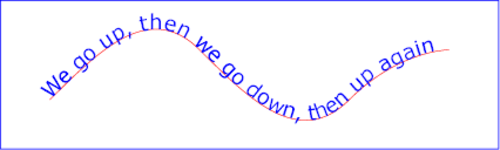
Figure 1 shows a basic example of text on a path.
This is what we want to emulate.
### SVG
SVG is the easier way to create text on a path to display on the browser.
The idea is to create a path to place the text in and then write the text using a `textPath` element nested inside a `text` parent element.
The basic code, placing the text on a rectangular path looks like this:
```xml
```
If we change the definition of the `path` element we can place the text in any shape that SVG can draw.
While SVG has dedicated elements for creating shapes, we must use the `path` element to create the paths we will place text in. The shape primitives (`rect`, `circle`, `ellipse`) will not work.
The next example will place text in a circle, created with a `path` element
```xml
```
While the example below shows text in a curve path.
```xml
```
There are a few things that I have a hard time with.
The difference between `viewBox` versus `height` and `width`. I've always struggled when using the `viewBox` attribute and calculating what does it mean.
Building `path` elements is not a trivial task. The best way to create the elements is to use a third-party tool like [Adobe Illustator](https://www.adobe.com/products/illustrator.html), [Inkscape](https://inkscape.org/), or Lea Verou's [SVG Path Builder](https://mavo.io/demos/svgpath/) to create the path that we'll use in the SVG code.
### CSS
CSS allows similar flexibility to SVG using the [offset-path](https://developer.mozilla.org/en-US/docs/Web/CSS/offset-path) and [offset-distance](https://developer.mozilla.org/en-US/docs/Web/CSS/offset-distance)
This example uses the [Splitting](https://splitting.js.org/) library to break the text into characters wrapped in `span` elements. This will make it easier to style and place characters in the path.
The HTML portion of the example uses the `data-splitting` attribute to indicate the element or elements that we want Splitting to work with.
```html
Text in a path
```
The Javascript portion initializes Splitting.js and makes sure we account for the spaces when splitting the content.
```js
Splitting({
whitespace: true
});
```
The CSS section is where all the magic happens. We leverage functionality, generated classes, and custom properties from Splitting.js
The `body` element defines the default font for the project.
The `h1` element controls the overall text characteristics, the dimensions of the element, the position of the text, and making all the text uppercase.
The `.char` class definition controls individual characters, wrapped in `span` elements inserted by Splitting.js.
`--i` defines a constant calculating the difference between 100% and the character placement in the string.
`offset-path` defines the path we will place the text on. We use the same path description that we used in SVG.
`offset-path-distance` specifies a position along an `offset-path` for an element to be placed. Since we placed each letter in a span with class `.char` they each need to be placed individually, otherwise they will display on top of each other in the same location.
```css
body {
font-family: "Helvetica", sans-serif;
}
h1 {
position: relative;
width: 800px;
height: 300px;
margin-block: 4rem;
margin-inline: auto;
text-transform: uppercase;
}
.char {
--i: calc(100% / (var(--char-total) + 2));
position: absolute;
offset-path: path(
"M6,150C49.63,93,105.79,36.65,156.2,47.55,207.89,58.74,213,131.91,264,150c40.67,14.43,108.57-6.91,229-145"
);
offset-distance: calc(var(--i) * var(--char-index));
padding-top: 4rem;
}
```
## Conclusions
Starting with the fact that neither option is *easy* the question becomes which one to use?
Where possible I would stick with SVG.
They both require special knowledge and how to place the content on the page.
Even if the syntax is XML-based and it requires learning additional commands and attributes, SVG provides more flexibility in terms of what you can do with text.
If you're not comfortable with XML or don't want to add another tool to your toolbox, CSS is available but it's much more limited in what it can do regarding "text-on-a-path".
## Links and resources
* SVG
* [SVG Basics](https://vanseodesign.com/?s=svg+basics&submit=Search) — vanseo design
* [SVG Basics—Creating Paths With Line Commands](https://vanseodesign.com/web-design/svg-paths-line-commands/)
* [SVG Basics—Creating Paths With Curve Commands](https://vanseodesign.com/web-design/svg-paths-curve-commands/)
* [SVG Text On Path—Part 1](https://vanseodesign.com/web-design/svg-text-on-a-path-part-1/)
* [SVG Text On Path—Part 2](https://vanseodesign.com/web-design/svg-text-on-pathpart-2/)
* CSS
* [Positioning Text Along a Path with CSS](https://css-irl.info/positioning-text-along-a-path-with-css/) — CSS IRL
* [SVG Path Editor](https://yqnn.github.io/svg-path-editor/)
