The picture element was added to the HTML specification as part of the responsive images effort.
This post will dive into the [picture](https://developer.mozilla.org/en-US/docs/Web/HTML/Element/picture), [source](https://developer.mozilla.org/en-US/docs/Web/HTML/Element/source) and [img](https://developer.mozilla.org/en-US/docs/Web/HTML/Element/img) elements along with the [srcset](https://developer.mozilla.org/en-US/docs/Web/API/HTMLImageElement/srcset) property and explore how we can use them to create responsive images in different scenarios.
At its simplest, `picture` is a wrapper for images created using the `img` element.
```html
```
What we're more likely to see is one or more `source` child elements.
```html
```
The `source` element is similar, but not identical, to what we use in `video` and `audio` elements. It uses `srcset` instead of `src` to indicate the images we want to load.
We will now look at some use cases for responsive images using `picture` elements.
## Offering alternative image formats and speeding page load times
The simplest use case for the picture element is to provide different image formats for the browser to choose from.
This can be used for two purposes:
To provide newer formats for browsers that support them.
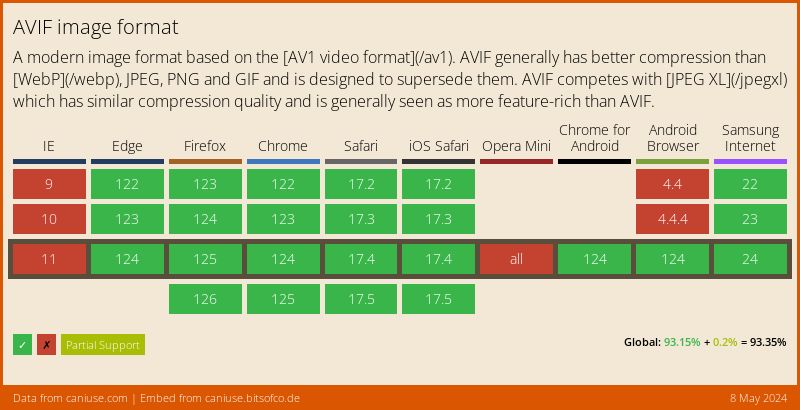
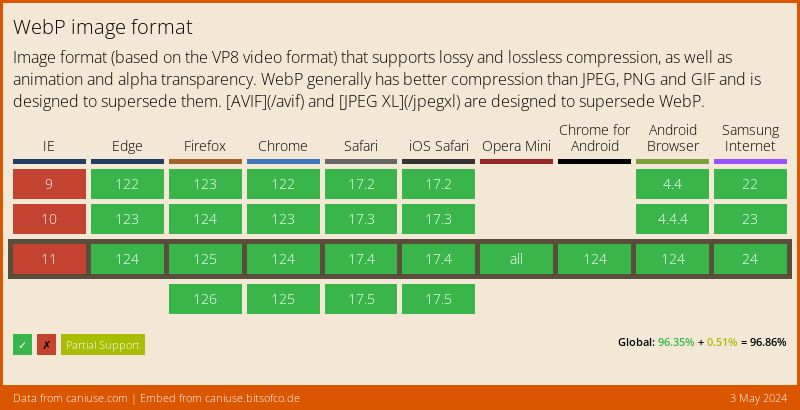
AVIF and WebP are supported in all major browsers
HEIF is only supported in Safari
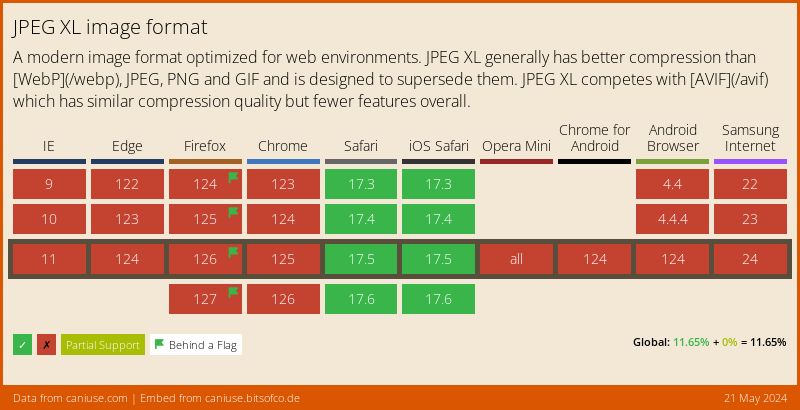
JPEG XL is fully supported in Safari and behind a flag in Firefox
Newer image formats offer better compression and smaller file sizes at the same quality. In providing these smaller files you may also make the page load faster.
In this example, we have two `source` elements loading an AVIF and a WebP version of the image. The default `img` element will render for browsers that don't support either format.
Current versions of browsers will load the AVIF image.
```html
```
As with the `source` for `video` and `audio` elements, order matters. Browsers will use the first format they support and discard any other `source` element inside the `picture`.
If we flipped the order of the `source` elements then current browsers would load the WebP image, even if they also support AVIF.
```html
```
## Art direction
Art direction is, to me, the most complicated use case for responsive images.
It involves multiple issues that we have to deal with, for example:
* Resizing images based on viewport size
* Cropping images based on viewport size
* Handling high DPI devices
* Combination of the above three cases
* Combination of art direction with format delivery
### Handling Different Image Sizes
There are two ways to control the size of an image.
The one uses the size of the viewport to indicate which image to use and it's controlled using media query syntax
If the viewport is larger than 75em the browser **must** display the large image.
If the viewport is between 40 and 75em the browser **must** use the medium image.
Otherwise, the browser **must** use the small image contained in the `img` element.
```html
```
You can also use the [srcset](https://developer.mozilla.org/en-US/docs/Web/API/HTMLImageElement/srcset) attribute of the `source` and `img` elements to further control the size of the image displayed to the user.
In addition to the media query, we can add additional images to the `srcset` along with an indicator of the width for each specific image.
Using the `w` indicates that the image matches a given size, giving browsers another indicator of what image to match for a given width and is more specific than the media query attached to the `srcset` element.
If we use the `w` attribute then we must also add a [sizes](https://developer.mozilla.org/en-US/docs/Web/API/HTMLImageElement/sizes) property.
In this case, we want all images to be at full width so we're ok with using `100vw` as the value for sizes.
There is a lot more than we can do with sizes and the `w` attribute but I don't want to dig too deep into it since it would make this post too long.
The first `source` element, the content matches if the viewport width is 800px or larger.
: If the viewport width is 800px then we use the first image (indicated by the `800w` value)
: If the viewport width is 1600px or larger then we use the second image (represented by 1600w value)
In the second `source` element, the content matches if the viewport width is 600px or wider.
: If the viewport is 600px or larger then use the first image listed.
: If the viewport is 1200px or larger then use the second one
```html
```
### Handling Pixel Density
You can also use the `source` element's pixel density descriptor to match the specified density.
We can use descriptors to tell the browser what image to use given the size and density combination. This is written by stating the pixel density as a positive, non-zero floating-point value followed by the lower-case letter "x".
In the first `source` element, that matches when the width is 75em or larger, we'll use the `1x` or simple resolution for the image.
For the second `source` element, we associate the relevant pixel density by using a positive integer and the `x` descriptor to indicate what density we want to use.
```html
```
### Cropping images
The final aspect of art direction with responsive images is cropping images.
If you only need to serve images of different sizes, `srcset` is your best option. But if the image doesn't look good in smaller sizes, you can try cropping the image instead.
The different images might have different dimensions to suit their context better. For example, on a mobile browser you may want to serve a crop that's narrow and tall, whereas on a desktop browser, you might want to serve a crop that's wide and short.
To crop the images provide explicit `height` and `width` attributes for each source element. Browsers will use these attributes to crop the image to the specified dimensions.
```html
```
You can also combine the cropped images with [object-view-box](https://ishadeed.com/article/css-object-view-box/) in supported browsers to create a better cropping effect.