
EPRDCTN in the command line: Introduction
This series of posts intends to walk you through some basic concepts, activities and shell commands to take the fear and pain away from working with a text-based interface that links directly to the Operating System. In more formal terms: > A command-line interface is a means of interacting with a computer program where the user (or client) issues commands to the program in the form of successive lines of text (command lines). A program which handles the interface is called a command language interpreter or shell. > > [Wikipedia](https://en.wikipedia.org/wiki/Command-line_interface) So what does it mean? It's like an old style terminal where you enter commands that make the computer do something. All Operating Systems have a CLI. Yes, even Windows and MacOS.  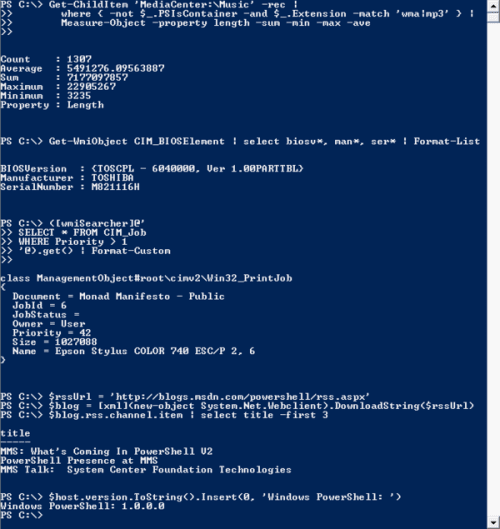 This is important because sooner or later you will find tools that will only work from a command line interface. We'll explore some of these tools (Node, Daisy Ace) in later sections but it's important to make this clear. ## What command line tools will we use? In Windows, the better tools are [PowerShell](https://docs.microsoft.com/en-us/powershell/scripting/powershell-scripting?view=powershell-6) a souped-up terminal shell with additional scripting capabilities, and [Windows Subsystem for Linux (WSL)](https://docs.microsoft.com/en-us/windows/wsl/about) a way to run Linux native applications from Windows. It uses a Ubuntu Linux image for Windows, not a modified version of Linux to run on Windows but a full version of Ubuntu Linux that will work together with Windows. As far as terminals are concerned we'll use the [iTerm2](https://www.iterm2.com/) for the Mac and a standard Bash shell for WSL. ## Before we get started Before we jump into further installations and customizations we need to do a few things that are dependent on the Operating System we're using. ### Mac Users: Install XCode Command Line Tools Before we install Homebrew we need to install Xcode command line tools. These are part of the full Xcode download but I'd rather save you the 5GB+ download so we'll go the slim (but with more steps) route instead. 1. Go to the [Apple Developer's site](https://developer.apple.com/) 2. Click on the account link on the right side of the top navigation bar. You can use the same account that you use of iTunes or any Apple property. 1. If prompted verify your account. This mostly happens when logging in from a new location or with a new computer 3. Click on Download Tools 4. Scroll down the screen and click on **See more downloads** 5. On the search box (to the left of the list of items to download) enter **Command Line Tools**. This will reduce the number of entries 6. Download the version that matches your MacOS version 7. Install the package. The version I downloaded was 173MB. I'm OKSwith the extra work :)  ### Windows Users: Make sure WSL and the Ubuntu Image are installed Before we move forward with WSL and Linux on Windows we need to make sure we have the right version of WSL installed and that we downloaded Ubuntu from the Microsoft Store. These instructions assume you're using the latest version of Windows 10. 1. Install the latest version of PowerShell * Download the MSI package from our GitHub releases page. The MSI file looks like this * PowerShell-6.0.0.`