
Deep Dive: OpenType features in CSS
In previous posts (this one [from 2015](https://publishing-project.rivendellweb.net/open-type-features/), this one [from 2017](https://publishing-project.rivendellweb.net/opentype-features-in-css/)) I did brief writeups about OpenType features and what they were. In [Open Type Features in CSS](https://publishing-project.rivendellweb.net/open-type-features-in-css/) from 2019, I wrote about OpenType features in the context of variations or what makes variable fonts and briefly touched on other features. In this post, I will dive deeper into other features available on OpenType fonts, how to implement them directly in CSS and how to implement them with CSS custom properties ## Getting started The first thing we need to do to enable OpenType features is to figure out what features are available to the specific font we are using and what font provider we're using. If you use Adobe Fonts (FKA Typekit) you can see the OpenType features available when you edit the fonts in a kit. 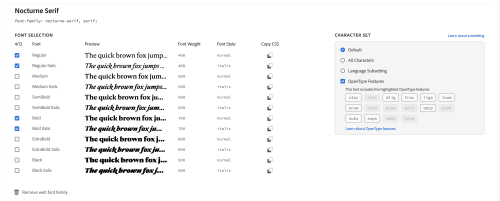 Fontkit OpenType feaature dialogue, part of the font section of the kit editing screen. The next image shows the details of the font editing screen that presents the available OpenType features of a font. 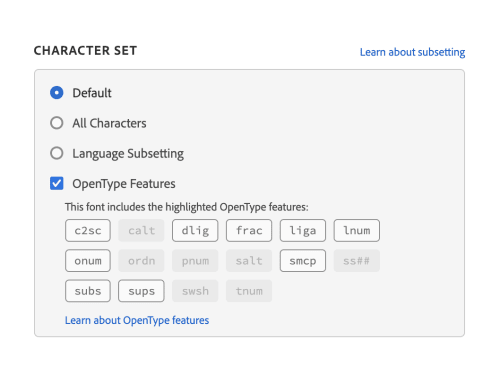 Detail of the font editing dialogue showing OpenType Features Unfortunately, Google Fonts doesn't provide an interface to the OpenType features supported on each font. [thisarmy](https://thisarmy.com/fonts/) created [fontsinfo](https://code.thisarmy.com/fontsinfo/) as a way to address this issue. For all the fonts listed in Google Fonts [Github Repo](https://github.com/google/fonts/) it will list and provide a visual demo of the OpenType features available to each font. 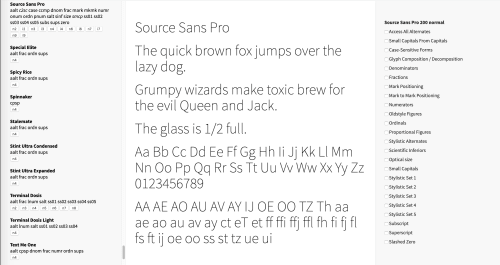 Fontsinfo web interfacce There is also [Google WebFonts Helper](https://google-webfonts-helper.herokuapp.com/fonts) that provides a better, in my opinion, and easier to use a mirror of Google Fonts. The final way to do it is using tools like [Wakamaifondue](https://wakamaifondue.com/) to get a list of the features available to that particular font. ## Using OpenType Features directly We will use [Roslindale Text](https://djr.com/notes/roslindale-text-font-of-the-month/) for the small caps examples and [Recursive](http://recursive.design/) as for the stylistic set examples. The first way to use OpenType features is to add them directly to the CSS we want to use them on. The advantage of doing this is that, overall, there is less code to type. The disadvantage is that browser support is uneven so you have to work with multiple versions of each feature if you want to support older browsers. We'll take two Open Type features and analyze how they work individually and together. The first feature is [Small Caps](https://docs.microsoft.com/en-us/typography/opentype/spec/features_pt#tag-smcp). This feature converts lower-case characters The Codepen below shows the complete result of using two features: Small Caps and Caps to Small Caps. The idea is to make all the text into smaller version of the capital letters. This is different than using `text-transform: uppercase` as it will produce smaller text than regular uppercase characters. The first step is to load the font using [@font-face](https://www.w3.org/TR/css-fonts-4/#font-face-rule). Notice how we define the same font twice using different values for the format. I'm following [Jason Pamental's advice](https://rwt.io/typography-tips/variable-fonts-what-web-authors-need-know) on the formats to make sure my variable font works everywhere by not relying on `woff2` to work for variable fonts. The next step is to use the font. I put the font-family declaration in the root `html` element to make sure it cascades down throughout the document unless I override it. ```css @font-face { font-family: "Roslindale Text"; src: url("https://s3-us-west-2.amazonaws.com/s.cdpn.io/32795/recursive.woff2") format("woff2 supports variations"), url("https://s3-us-west-2.amazonaws.com/s.cdpn.io/32795/recursive.woff2") format("woff2-variations"); font-display: swap; } body { font-family: "Roslindale Text", sans-serif; } ``` We create multiple classes for different font features that we want to use. We use the corresponding `font-variant` selection for the browsers that support it and three different versions of the low-level `font-feature-settings`, one prefixed for Firefox, one prefixed for WebKit browsers and an unprefixed versions, supposed to work everywhere. The values for `font-variant-caps` are defined in the [CSS Fonts Module Level 4](https://www.w3.org/TR/css-fonts-4/). The values for all `font-feature-settings` are dictated by the OpenType specification. ```css .smcp { font-variant-caps: small-caps; -moz-font-feature-settings: "smcp"; -webkit-font-feature-settings: "smcp"; font-feature-settings: "smcp"; } ``` We do the same thing for the caps to small caps. Note that the `font-variant-caps` value is `all-small-caps` and not the direct equivalent of `c2sc` like the values for `font-feature-settings`. ```css .c2sc { font-variant-caps: all-small-caps; -moz-font-feature-settings: "c2sc"; -webkit-font-feature-settings: "c2sc"; font-feature-settings: "c2sc"; } ``` We can also combine both small caps examples into a single set of rules. We use `all-small-caps` for font-variant and a comma-separated list of all the features that we want to use. ```css .small-caps { font-variant-caps: all-small-caps; -moz-font-feature-settings: "c2sc", "smcp"; -webkit-font-feature-settings: "c2sc", "smcp"; font-feature-settings: "c2sc", "smcp"; } ``` The result of these three classes is show in the Codepen below. The first paragraph uses the `small-caps` class and keeps all elements at the same size. The second paragraph uses small caps (`smcp`) to only turn the lowercase letters into small caps. You can see the difference between lower and uppercase letters. Another interesting case to look at is the stylistic sets available to a font. **Not all fonts have the same number of stylistic sets available and some stylistic sets will change the same letters in different ways so with these features you must be very careful when using them and deciding which one to use**. This example also assumes that we don't want to use all stylistic alternates available to the font so we won't be able to use the `all alternates` OpenType feature. Also, because we're using multiple values of the same feature we can't call the same feature multiple times or it will override the values with the last one in document order, so we'll cheat and leverage [Using multiple OpenType features](https://helpx.adobe.com/fonts/using/use-open-type-features.html#multiple) to accomplish our goals. Because I want to make sure that we cover as many supported browsers as possible, I've written the property three times, once for Firefox, once for WebKit browsers and an unprefixed version. The code looks like this: ```css .styled { -moz-font-feature-settings: "ss01", "ss02", "ss03", "ss04", "ss05", "ss06", "ss07"; -webkit-font-feature-settings: "ss01", "ss02", "ss03", "ss04", "ss05", "ss06", "ss07"; font-feature-settings: "ss01", "ss02","ss03", "ss04", "ss05", "ss06", "ss07"; } ``` ## CSS Custom Properties Another option, slightly more verbose, is to use CSS custom properties, then insert these custom properties into classes and finally create a single font-feature-settings selector so that if any of the custom properties We could also use custom properties rather than spell out the individual properties. That is left as an exercise to the reader :) ## Links and Resources * [OpenType Specification](https://docs.microsoft.com/en-us/typography/opentype/spec/) * [Using OpenType features](https://helpx.adobe.com/fonts/using/use-open-type-features.html) * [Syntax for OpenType features in CSS](https://helpx.adobe.com/fonts/using/open-type-syntax.html)