CSS Paged Media In The Browser
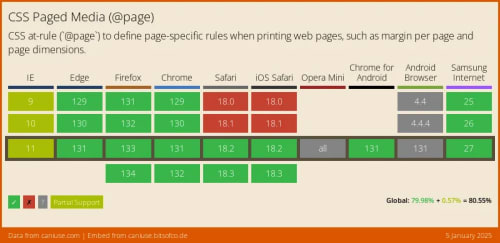
When it comes down to printing web pages we haven't had much control over the output. The browser would just render the page as it is and print it. But with the introduction of CSS Paged Media, we can now control how the page is rendered when printed. This post will cover how to use CSS Paged Media to control the layout of the printed page and some tricks to make the printed page look better. ## How does Paged Media Work? CSS Paged Media is a module of CSS that defines how documents are formatted for print or other types of paged media. It allows you to control the layout of the printed page, including page size, margins, headers, footers, and page breaks. It is an enhancement over traditional print stylesheets, which are limited in their ability to control the layout of the printed page. You start by specifyin the page size and margins using the `@page` at-rule. This example will set the page size to 8.5 inches by 11 inches (US letter size) with a margin of 0.5 inches on the top and bottom and 1 inch on the left and right. ```css @page { size: 8.5in 11in; margin: 0.5in 1in; } ``` You can also specify different page sizes and margins for different types of content using the `@page` at-rule with a selector. For example, you can set the page size and margins for the title page of a book to be different from the rest of the book. For example, all the chapter pages will have a running header in the bottom center location of the page. If there is no specific match for the page we're working with, it'll use the default page settings. ```css @page chapter { @bottom-center { vertical-align: middle; text-align: center; content: element(heading); } } ``` Paged Media provides 16 locations defined in the [Page-Margin Boxes](https://drafts.csswg.org/css-page-3/#margin-boxes) section of the Paged Media specification. In these locations you can place content on the page and are defined using their own at rules. The locations are: * @top-left-corner * @top-left * @top-center * @top-right * @top-right-corner * @left-top * @left-middle * @left-bottom * @right-top * @right-middle * @right-bottom * @bottom-left-corner * @bottom-left * @bottom-center * @bottom-right * @bottom-right-corner You can also define different content for right versus left pages using the `:right` and `:left` pseudo-classes. For example, you can set the page number on chapter pages to be on the outside corner of the page for right pages and the inside corner for left pages. ```css @page chapter:right { @bottom-right-corner { content: counter(page) } @bottom-left-corner { content: normal } } @page chapter:left { @bottom-left-corner { content: counter(page) } @bottom-right-corner { content: normal } } ``` For blank pages we need to reset any numbering or content that might be on the page using the `normal` value. ```css @page chapter:blank { /* Need this to clean up page numbers in titlepage in Prince*/ @bottom-left-corner { content: normal;} @bottom-right-corner {content:normal;} } ``` To configure the document for print, we do the following: * Use `data-type` attributes to define specific types of content that we can then target with CSS * Use the `page` attribute in CSS to associate types of pages with specific elements on the page To set up the default for the book, we add the `data-type` chapter is set to book. ```css body[data-type="book"] { color: cmyk(0%,0%,100%,100%); hyphens: auto; } ``` We use the `section` element to separate the different types of content in the book using the `data-type` attribute. To create the title page we use `data-type="titlepage"` and for the chapters we use `data-type="chapter"`. We also specify that we want page breaks before any new chapter. ```css section[data-type="titlepage"] { page: titlepage; } section[data-type="chapter"] { page: chapter; page-break-before: always; } ``` And any specialized type of content that the book might have. The table of content is a special case, we can use the `nav` element with the `data-type="toc"` attribute to define the table of contents. The `content` attribute uses the [leader](https://www.w3.org/TR/css-content-3/#leader-function) function to add a dotted leader to the page number and a cross-reference to the page number. ```css /* TOC */ nav[data-type="toc"] { page: toc } nav[data-type="toc"] ol { list-style-type: none } /* LEADER CONTENT */ nav[data-type="toc"] ol li a:after { content: leader(dotted) " " target-counter(attr(href, url), page); } ``` In typography, widows and orphans are single words or short lines of text that appear at the top or bottom of a page or column, separated from the rest of the paragraph. Widows : A line of text at the end of a paragraph that appears at the top of the next page or column. Orphans : A line of text at the beginning of a paragraph that appears at the bottom of the page or column. You can control the number of orphans and widows lines via CSS using the `orphans` and `widows` properties. ```css p { orphans:4; widows:2; } ``` To add running headers and footers to the page, you can add the [running](https://www.w3.org/TR/css-gcpm-3/#running-syntax) function to take the value from the flow of the text and place it in a margin box. ```css p.rh { position: running(heading); text-align: center; font-style: italic; } ``` ## Current status Unfortunately the support for CSS Paged Media is not yet widespread and relies on third-party commercial software to generate PDF results. ### Third Party Tools Most of the results from CSS Paged Media will produce PDF files as the output. In my experience, the best tools for generating PDFs from HTML and CSS are [Prince XML](https://www.princexml.com/) and [Antenna House Formatter](https://www.antennahouse.com/). Both tools are commercial products and support the full range of CSS Paged Media features and produce high-quality PDF output. There is also an online service, [Doc Raptor](https://docraptor.com/) that uses Prince XML to generate PDFs from HTML and CSS online from a variety of languages. While there are open source tools like [WeasyPrint](https://weasyprint.org/) that can generate PDFs from HTML and CSS, they are not as feature-rich their commercial equivalents. ### Browser Support