
Converting Markdown to Slides
If you've seen some of my earlier posts about Markdown you know that I love the flexibility of writing Markdown and then generate other formats. Using my starter kit I can generate HTML and PDF from the same Markdown source. I found out a project to convert Markdown to [Google Slides](https://www.google.com/slides/about/) using a modified Markdwon parser and the [Slides API](https://developers.google.com/slides/) to generate complete presentations. In this essay I'll look at tree aspects of this process: * How to run the tool inside a Gulp build process * The md2gslides specific syntax for different types of slides * The code for some of the parser functionality to generate these types of content We could use code from Literate CSS to build both the narrative and the presentation for a given content. In the future we may want to use our own custom parser so we write less raw HTML in the Markdown files. ## Running the tool inside a build script I'll use the same tools from the [starter](https://github.com/caraya/starter) project to add the slide functionality. We don't need to add any plugins for the code to work. The task is simple. It takes all the Markdown files from the `src/slides` directory and run the `md2gslides` utility to convert them to Google Slides. ```javascript // Build Google Slides gulp.task('build-slides', () => { let options = { // default = false, true means don't emit error event continueOnError: false, // default = false, true means stdout is written to file.contents pipeStdout: false, }; let reportOptions = { // default = true, false means don't write err err: true, // default = true, false means don't write stderr stderr: true, // default = true, false means don't write stdout stdout: true }; return gulp.src('./src/slides/*.md') .pipe($.exec('md2gslides --style github <%= file.path %> ', options)) .pipe($.exec.reporter(reportOptions)) }); ``` ## Slides Each slide is typically represented by a header, followed by zero or more block elements. The tool uses a modified markdown parser to generate the content. Begin a new slide with a horizontal rule (`---`). The separator is optional on the first slide. The following examples show how to create slides of various layouts: ### Title slide ```markdown --- # This is a title slide ## Your name here ```  ### Section title slides ```markdown --- # This is a section title  Section title slide ``` ### Section title & body slides ```markdown --- # Section title & body slide ## This is a subtitle This is the body ```  #### Title & body slides ```markdown --- # Title & body slide This is the slide body. ```  #### Main point slide Add `{.big}` to the title to make a slide with one big point ```markdown --- # This is the main point {.big} ```  #### Big number slide Use `{.big}` on a header in combination with a body too. ```markdown --- # 100% {.big} This is the body ```  #### Two column slides Separate columns with `{.column}`. The marker must appear on its own line with a blank both before and after. ```markdown --- # Two column layout This is the left column {.column} This is the right column ``` 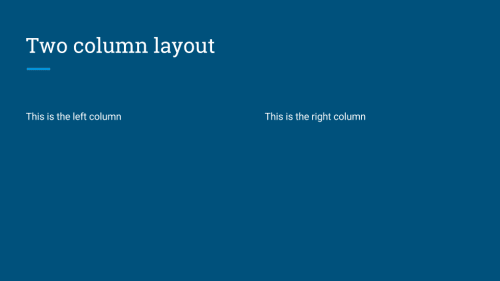 ### Images #### Inline images Images can be placed on slides using image tags. Multiple images can be included. Mulitple images in a single paragraph are arranged in columns, mutiple paragraphs arranged as rows. Note: Images are currently scaled and centered to fit the slide template. ```markdown --- # Slides can have images  ``` 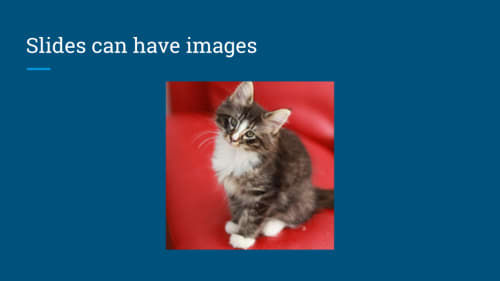 #### Background images Set the background image of a slide by adding `{.background}` to the end of an image URL. ```markdown --- # Slides can have background images {.background} ```  ### Videos Include YouTube videos with a modified image tag. ```markdown --- # Slides can have videos @\[youtube\](MG8KADiRbOU) ``` 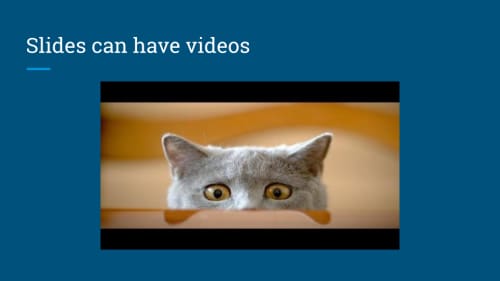 ### Speaker notes Include speaker notes for a slide using HTML comments. Text inside the comments may include markdown for formatting, though only text formatting is allowed. Videos, images, and tables are ignored inside speaker notes. ```markdown --- # Slide title {.background} ``` ### Formatting Basic formatting rules are allowed, including: * Bold * Italics * Code * Strikethrough * Hyperlinks * Ordered lists * Unordered lists The following markdown illustrates a few common styles. \*\*Bold\*\*, \*italics\*, and \~\~strikethrough\~\~ may be used. Ordered lists: \1. Item 1 \1. Item 2 \ 1. Item 2.1 Unordered lists: \* Item 1 \* Item 2 \* Item 2.1 Additionally, a subset of inline HTML tags are supported for styling. * `` * `` * `` * `` * `` * `` * `` Supported CSS styles for use with `` elements: * `color` * `background-color` * `font-weight: bold` * `font-style: italic` * `text-decoration: underline` * `text-decoration: line-through` * `font-family` * `font-variant: small-caps` ### Emoji Use Github style [emoji](http://www.webpagefx.com/tools/emoji-cheat-sheet/) in your text using the `:emoji:`. The following example inserts emoji in the header and body of the slide. \### I :heart: cats :heart\_eyes\_cat: ### Code blocks Both indented and fenced code blocks are supported, with syntax highlighting. The following example renders highlighted code. \### Hello World \`\`\`language-javascript console.log('Hello world'); \`\`\` To change the syntax highlight theme specify the `--style