
Compiling Chromium From Source
**Note**: This post discusses the compilation process in a Macintosh. Instructions for other operating systems can be found at [Get the code](https://chromium.googlesource.com/chromium/src/+/master/docs/get_the_code.md) A few months ago Quora started posting questions about the difference between Chromium and Chrome. A lot of the questions assumed that it would be easy to add the missing features to Chromium and just start it up and you would have a clone of Chrome without any further hassle. Sadly this is not true. The majority of the features require compilation time flags to be enabled or disabled and some, like Widevine DRM support, require contacting the Widevine team at Google and requesting keys to enable the feature. They don't work with Open Source software and that's what your own version of Chromium is. But, come on, how hard would it be to compile Chromium from source? Considering that I've compiled several tools I use on my Mac I thought it wouldn't be too hard and I could quickly get the browser up and running. This is the report of what I did and How I did it. ## Prerequisites We need the following things to be installed and running in the Mac where we want to compile and run Chromium. - 64-bit MacOS 10.12 or later - Xcode 8+ - [depot\_tools](https://commondatastorage.googleapis.com/chrome-infra-docs/flat/depot_tools/docs/html/depot_tools_tutorial.html) We also need - A lot of disk space - Time and patience ## Get the code Ensure that Unicode filenames aren't mangled by HFS: ```bash git config --global core.precomposeUnicode true ``` ## Prepare the directories and download code ```bash mkdir chromium && cd chromium ``` Run the fetch tool from depot\_tools to check out the code and its dependencies. ```bash fetch chromium ``` This command took about 30 minutes on my 2018 MacBook pro. It may take significantly longer when using slower connections If you don't need the full repo history, you can save time by using `fetch --no-history chromium`. You can call git `fetch --unshallow` to retrieve the full history later. When fetch completes, it will have created a hidden .gclient file and a directory called src in the working directory. The remaining instructions assume you have switched to the src directory: ```bash cd src ``` Optional: You can also install API keys if you want your build to talk to some Google services, but this is not necessary for most development and testing purposes. I've chosen not to do it. ## Setting up the build Chromium uses Ninja as its main build tool along with a tool called GN to generate .ninja files. You can create any number of build directories with different configurations. To create a build directory: ```bash gn gen out/Default ``` Things to note: - You only have to run this once for each new build directory, Ninja will update the build files as needed. - You can replace Default with another name, but it should be a subdirectory of out. - For other build arguments, including release settings, see GN build configuration. The default will be a debug component build matching the current host operating system and CPU. For more info on GN, run gn help on the command line or read the quick start guide. ## Actually Build Chromium Build Chromium (the “chrome” target) with Ninja using the command: ```bash autoninja -C out/Default chrome ``` autoninja is a wrapper that automatically provides optimal values for the arguments passed to ninja. This command took 6+ hours to complete for a fresh compilation. It should take significantly shorter for updates. ## Run Chromium Once it is built, you can simply run the browser: ```bash out/Default/Chromium.app/Contents/MacOS/Chromium ``` Unless you have a developer account with Apple you will not be able to sign the app and run it normally 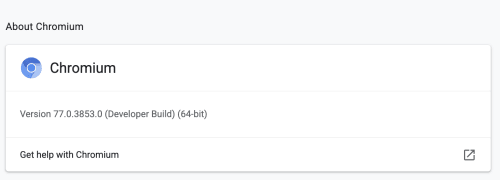 Portion of About Chromium showing the version and indicating it's a developer's build ## What we don't get with Chromium Before we move any further let's look at the things you don't get. - Access to the Google client libraries. If any tool you're used to working with breaks, this may be the reason why - No EME playback so no Netflix and no application that plays any stream of encrypted media (audio or video) - No MP3 audio, it requires a license that Google provides - No MP4 and no AAC audio, they too require a license that Google provides If you want to get the client keys to recover that functionality, and understand that Google will be able to track some of your actions online while using them, you can follow the instructions [on this page](https://www.chromium.org/developers/how-tos/api-keys) to get them. Out of the 4 items that I mentioned the one that worries me the most is the EME. You must have a license for any of the CDMs available and the easiest one to work with, Widevine (owned by Google), will not work with open source projects as documented by [Samuel Maddock](https://blog.samuelmaddock.com/posts/google-widevine-blocked-my-browser/) and then [blown out of proportion by the media](https://www.bloomberg.com/news/articles/2019-05-28/google-s-chrome-becomes-web-gatekeeper-and-rivals-complain). I fully agree that whoever handled the issue on the Widevine side more gracefully I would have been surprised had the project been approved but then, we would have never heard about it in the first place.